To plug in a new Aircube router or to ensure that your existing router is plugged into your internet connection correctly, please follow this guide.
If you are experiencing issues with your internet connection in general, see this article for basic troubleshooting steps.
Step One: Check Your Power Injector
Locate your power injector (the power injector is a small white rectangular piece about 3-4" long with two cables coming out of one end). It’s often located in a basement area, sometimes under a flight of stairs or attached to a stud.
If you are having difficulty locating your power injector, feel free to contact our customer support team, and they will be happy to help you!
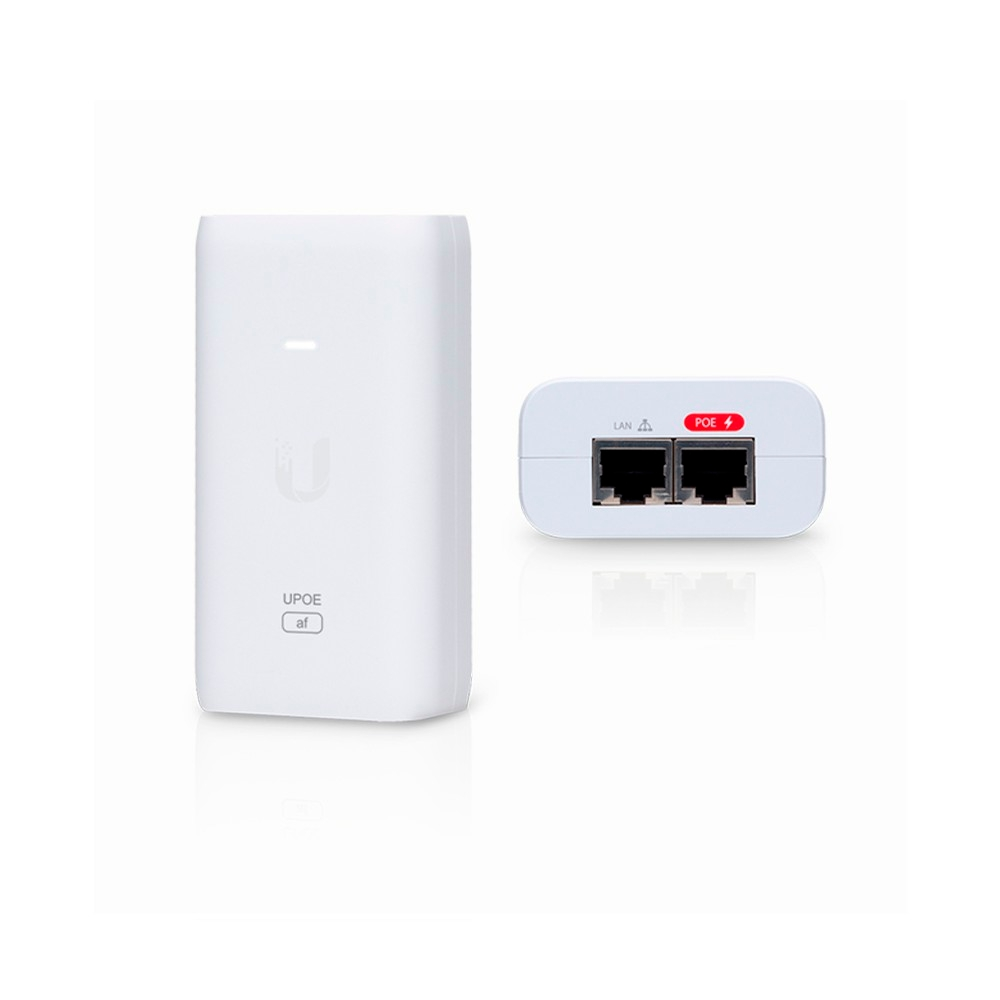
Verify that the cable going from the LAN port on your power injector is plugged into your router’s WAN port.
- Note: the cable from the PoE port on your power injector powers the dish, so your internet will not work if you plug the PoE cable into your router.
Step Two: Check Your Router
Please make sure that the ethernet cable that is plugged into the LAN port on your power injector is the same cable that plugs into the WAN/LAN port on your router. (Depending on your wiring and set up, you might be able to trace the ethernet cable straight from your router back to the power injector, or the cable might go from your router into a wall jack and then connect to your power injector in another part of your house.)
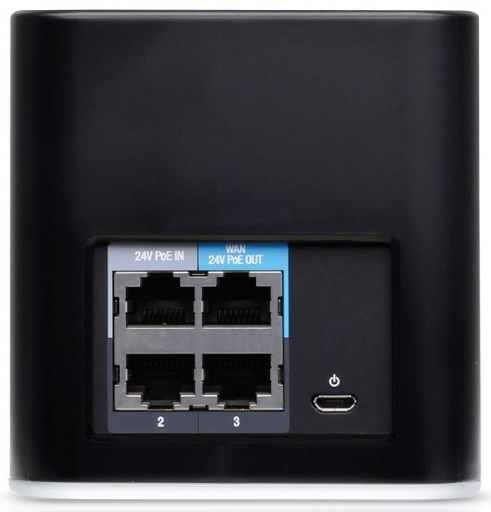
As shown in the photo above, the WAN port on your Aircube router will be blue.
Most routers have extra ports which you can use to hardwire additional devices. Please make sure that the ethernet cable for the internet connection is plugged into the WAN/internet port and not one of these extra ports, or your connection will not work properly.
To summarize these steps, the ethernet cable should go from the LAN port on your power injector to the WAN/internet port on your router.
If you are plugging in a new personal router, you will still need to set it up. Please unplug your old router, then plug in your new router following the steps above. Once you have your new router plugged in properly and connected to the internet, you will be able to set up your new router with any additional steps, depending on which type you are using.
Great job verifying your cable setup!
If you have any questions, feel free to reach out to our customer support team anytime by email (support@ascentbb.com), and we'll be more than happy to help. You can also reach us by phone (970-340-8100) between 7 AM - 5:30 PM, M-F.
Was this article helpful?
That’s Great!
Thank you for your feedback
Sorry! We couldn't be helpful
Thank you for your feedback
Feedback sent
We appreciate your effort and will try to fix the article